Energy Wheel Card
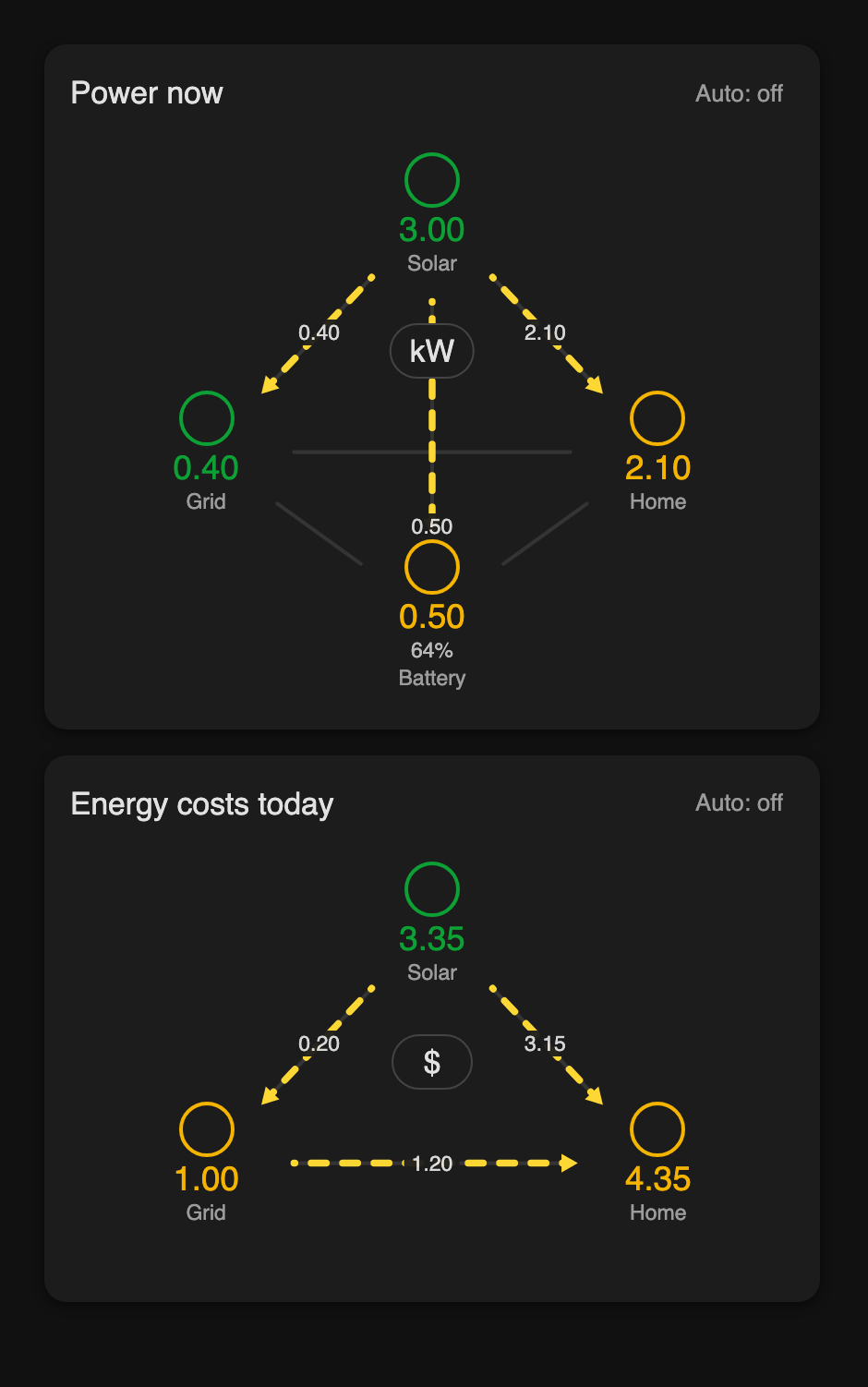
A card for Home Assistant that shows solar, grid, home and (optionally) a battery as a wheel of animated arrows, with three views you can switch between: power now, energy for a period, and what it costs or saves. No dependencies, one JavaScript file, a visual editor included.
Free, MIT licensed. Version 1.0.0. Download energy-wheel-card.js (25 KB)
- Download energy-wheel-card.js.
- Copy it into
/config/www/dashpack/on your Home Assistant (create the folder if needed; restart once if/config/wwwdid not exist). - Turn on Advanced mode in your profile. Then Settings > Dashboards > three dots > Resources > Add resource: URL
/local/dashpack/energy-wheel-card.js, type JavaScript module. - Hard-refresh the browser (Ctrl+Shift+R / Cmd+Shift+R). The card is now available as
custom:energy-wheel-card.
Use
Add the card from the card picker ("Energy Wheel Card") or in YAML. The smallest useful config:
type: custom:energy-wheel-card
solar_power_entity: sensor.solar_power
grid_power_entity: sensor.grid_power
Everything works from YAML; the visual editor covers the common options and keeps the rest.
A fuller example with a battery, an energy view and a money view:
type: custom:energy-wheel-card
title_power: Power now
title_energy: Energy today
title_money: Costs today
solar_power_entity: sensor.solar_power
grid_power_entity: sensor.grid_power
production_is_positive: true      # positive grid value = exporting
battery_power_entity: sensor.battery_power
battery_soc_entity: sensor.battery_level
solar_energy_entity: sensor.solar_energy_today
grid_energy_consumption_entity: sensor.grid_import_today
grid_energy_production_entity: sensor.grid_export_today
energy_consumption_rate: sensor.electricity_price   # a number or an entity
energy_production_rate: 0.08
money_unit: "$"
initial_auto_toggle_view: true
auto_toggle_view_period: 8
The unit in the middle switches views; the "Auto" button in the corner cycles them. Tapping a value opens that entity's more-info dialog.
The three views
| View | Needs | Shows |
|---|---|---|
| Power | solar_power_entity and a grid sensor (or an import/export pair) | live power; arrows with values; optional battery |
| Energy | solar_energy_entity plus either grid_energy_consumption_entity + grid_energy_production_entity, or grid_energy_entity + home_energy_entity | energy for whatever period your sensors cover (day, month...) |
| Money | the Energy view plus energy_consumption_rate | grid = bought minus sold (negative means you earned), solar = what it saved plus what it earned, home = consumption at the buying rate |
Views you have not configured are simply not offered. Home power is calculated (solar plus grid import, minus export, minus battery charging) unless you give home_power_entity / home_energy_entity. In the Energy view, battery flows are not tracked. With only net grid and home energy sensors the Energy and Money views show values but no arrows, because a net number hides the direction of flow.
Options
| Option | Default | Notes |
|---|---|---|
solar_power_entity | required | one entity id or a list; a list is summed |
grid_power_entity | net grid power. Or use the next two | |
grid_power_consumption_entity, grid_power_production_entity | separate import and export sensors | |
production_is_positive | true | polarity of the net grid sensors (grid_power_entity, grid_energy_entity) |
home_power_entity | calculated | use a real home sensor for the home value |
battery_power_entity, battery_soc_entity | battery power and its percentage | |
charging_is_positive | true | polarity of the battery sensor |
solar_energy_entity | one id or a list | |
grid_energy_consumption_entity, grid_energy_production_entity | grid import and export energy | |
grid_energy_entity, home_energy_entity | net grid energy and home energy, when you have no separate sensors | |
energy_consumption_rate, energy_production_rate | price per energy unit, a number or an entity id; production defaults to the consumption rate | |
money_unit | € | shown in the middle of the Money view |
title, title_power, title_energy, title_money | none | per-view titles override title |
power_unit, energy_unit | automatic | W, kW, MW / Wh, kWh, MWh; automatic = the unit of the first solar sensor. Sensors are converted, so W and kW can be mixed |
power_decimals, energy_decimals, money_decimals | 0 (W) or 2 (kW); 0 (Wh) or 3; 2 | |
min_flow | 0 | hide arrows at or below this value (in the displayed unit) |
initial_view | power | power, energy or money |
initial_auto_toggle_view, auto_toggle_view_period | false, 10 | automatic view switching, in seconds |
color_icons, consuming_color, producing_color, invert_grid_colors, active_arrow_color | on, theme yellow, theme green, off, theme | any CSS colors |
solar_icon, grid_icon, home_icon, battery_icon | sensor icon or default | mdi icons |
solar_name, grid_name, home_name, battery_name | Solar, Grid, Home, Battery | labels |
Arrows stop animating if the browser asks for reduced motion.
Example dashboard
A small sample view you can paste into the raw configuration editor (replace the placeholder entity ids with your own):
max_columns: 1
sections:
  - type: grid
    cards:
      - type: custom:energy-wheel-card
        title: Energy
        solar_power_entity: sensor.solar_power
        grid_power_entity: sensor.grid_power
        solar_energy_entity: sensor.solar_energy_today
        grid_energy_consumption_entity: sensor.grid_import_today
        grid_energy_production_entity: sensor.grid_export_today
        energy_consumption_rate: 0.25
      - type: grid
        columns: 2
        square: false
        cards:
          - type: tile
            entity: sensor.solar_power
          - type: tile
            entity: sensor.grid_power
          - type: tile
            entity: climate.thermostat
          - type: tile
            entity: switch.ev_charger
8 more ready-made views (living room, bedroom, kitchen, cameras, security, energy, mobile) are in the Home Dashboard Layout Pack ($9): https://dashpack.strahmdigital.com/
Free dashboard guides with copy-paste YAML: https://dashpack.strahmdigital.com/guides/ Related guide: https://dashpack.strahmdigital.com/guides/home-assistant-energy-dashboard-card/
Coming from custom:power-wheel-card
That card (gurbyz/power-wheel-card) has not been updated since 2022. Its open issues include a battery icon that shows twice (#81), a home value that is calculated even when you give a home sensor (#80), no second solar sensor (#78) and no entity for the price (#88). This card is an independent rewrite that keeps the same option names for the common settings, so most configs work after changing the card type:
- Change
type: custom:power-wheel-cardtotype: custom:energy-wheel-card. - Check the options below, then the layout: it is a similar but not pixel-identical design (battery gets its own slot at the bottom).
| Old option | Here |
|---|---|
solar_power_entity, grid_power_entity, grid_power_consumption_entity, grid_power_production_entity, production_is_positive | same |
solar_energy_entity, grid_energy_consumption_entity, grid_energy_production_entity, grid_energy_entity, home_energy_entity | same |
energy_consumption_rate, energy_production_rate, money_unit | same; the rates may now also be an entity id |
title, title_power, title_energy, title_money | same |
power_decimals, energy_decimals, money_decimals | same; default depends on the unit |
initial_view, initial_auto_toggle_view, auto_toggle_view_period | same |
color_icons, consuming_color, producing_color, invert_grid_colors, active_arrow_color | same |
solar_icon, grid_icon, home_icon | same |
battery_power_entity, battery_soc_entity, charging_is_positive, battery_icon | same, no longer marked beta |
home_power_entity, home_energy_entity (used for the icon only) | now also the value shown for home; remove them if you want the calculated value |
debug | not needed, ignored |
style (card-mod) | use card-mod's own card_mod: on the card; the inner class names differ |
| (none) | new: power_unit, energy_unit (mixed W and kW sensors work), a list for solar_*_entity, min_flow, *_name, hass-more-info on tap |
The money view's numbers are defined as described above; compare them with your old card before relying on them.
This project is not affiliated with the author of that card.